
Apply filters with one click or fine‑tune manually
Click to upload an image or drag & drop
Supports JPG, PNG, GIF, BMP, WebP


All filters are applied using the canvas filter property. Adjust the sliders or use preset buttons to quickly apply combinations. The original image remains unchanged. You can reset all filters or download the filtered image as PNG.
filter property. The sliders update the filter string, and the image is redrawn on a hidden canvas. No server involved – your image stays private.
Founder & CEO, Toolraxy
Faiq Ur Rahman is a web designer, digital product developer, and founder of Toolraxy, a growing platform of web-based calculators and utility tools. He specializes in building structured, user-friendly tools focused on health, finance, productivity, and everyday problem-solving.
User Ratings:
ADVERTISEMENT
The Image Filters tool is a free, browser‑based utility that lets you apply professional‑quality photo filters instantly. Whether you want to give your images a vintage look, cool them down with blue tones, warm them up with golden hues, or increase contrast for dramatic effect, this tool has you covered. Choose from eight one‑click presets including Sepia, Grayscale, and High Contrast, or take full control with seven adjustable sliders for brightness, contrast, saturation, hue rotation, blur, and more. All processing happens locally on your device – no files are ever uploaded to a server. This makes it ideal for photographers, social media managers, and anyone who values speed and privacy. No sign‑ups, no watermarks, no limits.
Upload an image – Click the upload area or drag & drop an image file (JPG, PNG, GIF, BMP, WebP).
Apply a preset filter – Choose from eight quick presets: Normal, Vintage, Cool, Warm, High Contrast, Blurred, Sepia, or Grayscale.
Fine‑tune manually – Use the seven sliders to adjust individual filter settings:
Grayscale (0–100%)
Sepia (0–100%)
Invert (0–100%)
Brightness (0–200%)
Contrast (0–200%)
Saturation (0–200%)
Hue rotate (0–360°)
Blur (0–20 px)
Preview in real time – The filtered image updates instantly as you adjust sliders or click presets.
Reset if needed – Click “Reset filters” to return to the original image.
Download the result – Click “Download PNG” to save your filtered image.
The tool uses the HTML5 canvas element and its built‑in filter property to apply effects entirely in your browser. No image data is sent to any server.
Filter composition – Each slider corresponds to a CSS filter function: grayscale(), sepia(), invert(), brightness(), contrast(), saturate(), hue-rotate(), and blur(). When you move a slider, the tool builds a filter string combining only the active effects (those with non‑default values).
Canvas rendering – A hidden canvas is created with the same dimensions as the original image. The canvas context’s filter property is set to the composed filter string, and the original image is drawn onto the canvas. The filter is applied automatically during the drawing operation.
Real‑time preview – The canvas is then converted to a blob and displayed in the “Filtered” preview area. The process repeats every time you adjust a slider or click a preset.
Preset logic – Presets are predefined combinations of slider values. For example, “Vintage” sets grayscale=10%, sepia=30%, brightness=110%, contrast=90%, saturation=80%, hue‑rotate=10°. Clicking a preset updates all sliders simultaneously and triggers a filter refresh.
All operations use the original image as a source, so you can experiment endlessly without degrading quality. The download function captures the final canvas and saves it as a PNG file.
Inputs:
Original image: 800×600 pixel photograph.
User selects Warm preset: sepia=20%, brightness=105%, contrast=105%, saturation=120%, hue‑rotate=30°.
All other sliders remain at default (grayscale=0%, invert=0%, blur=0px).
Step‑by‑step:
The tool builds the filter string: sepia(0.2) brightness(1.05) contrast(1.05) saturate(1.2) hue-rotate(30deg).
A new 800×600 canvas is created.
The canvas context’s filter property is set to the above string.
The original image is drawn onto the canvas. During drawing, the browser applies each filter in sequence:
First, a 20% sepia tone is added.
Brightness is increased by 5%.
Contrast is increased by 5%.
Saturation is boosted to 120%.
Finally, all hues are rotated by 30 degrees toward the orange/yellow spectrum.
The resulting canvas contains the warm‑filtered image.
Output: A warmer version of the original photo with enhanced saturation and a golden tint.
Image filters are digital effects that alter the appearance of a photograph by changing its color, tone, or texture. They can simulate traditional camera filters (like warming or cooling gels), replicate film stocks (like sepia or grayscale), or create artistic effects (like high contrast or hue shifts). In digital terms, filters are mathematical operations applied to each pixel’s RGB values or to the image as a whole.
Filters are essential tools in photography, design, and social media:
Creative expression – Filters let you set a mood or style instantly. A vintage filter can make a photo feel nostalgic; a high‑contrast filter can add drama.
Brand consistency – Businesses apply the same filter to all images to create a recognizable visual identity.
Correction – Brightness and contrast adjustments fix poorly exposed photos; saturation boosts dull colors.
Accessibility – Grayscale filters help simulate how images appear to color‑blind users.
| Filter | Effect | Typical Use |
|---|---|---|
| Grayscale | Removes all color, leaving shades of gray | Classic black‑and‑white look, accessibility |
| Sepia | Adds warm brownish tone | Vintage, old‑photo effect |
| Invert | Reverses colors (negative) | Artistic, surreal effects |
| Brightness | Makes image lighter or darker | Exposure correction |
| Contrast | Increases or decreases difference between light and dark | Making images pop or softening |
| Saturation | Controls color intensity | Vibrant or muted looks |
| Hue rotate | Shifts all colors around the color wheel | Creative color changes |
| Blur | Softens image by averaging pixels | Background effects, privacy |
Social media – Quickly enhance photos before posting to Instagram, Facebook, or TikTok.
E‑commerce – Apply consistent filters to product images for a uniform store look.
Graphic design – Use filters as a starting point for further editing in professional software.
Web design – Pre‑filter images to match a website’s color scheme.
Education – Demonstrate color theory and image processing concepts.
Personal projects – Create artistic versions of family photos.
Speed – Transform an image in seconds, no advanced skills needed.
Non‑destructive – Original remains untouched; you can always revert.
Combinable – Stack multiple effects for unique results.
Predictable – Presets offer consistent, repeatable looks.
Filters cannot fix severely underexposed or overexposed areas – they only adjust existing data.
Some combinations may produce unexpected results (e.g., high blur with high contrast).
Hue rotation affects all colors equally; you cannot target specific color ranges.
Canvas‑based filters are applied linearly; they don’t offer layer masks or selective application (though you can combine with other tools for that).
Over‑filtering – Too many effects can make an image look artificial or muddy.
Ignoring the original – Some photos are better left unaltered.
Using the wrong preset – A cool filter on a portrait can make skin tones look unhealthy.
Forgetting to check details – High contrast can clip shadows or highlights, losing detail.
Professional editors like Adobe Lightroom offer parametric editing (shadows, highlights, curves) far beyond basic filters. However, for quick, one‑click enhancements, filter tools like this are invaluable. The trend toward client‑side processing addresses growing privacy concerns – users no longer need to upload personal photos to unknown servers. This tool aligns with that shift by performing all operations locally.
| Preset | Grayscale | Sepia | Brightness | Contrast | Saturation | Hue | Blur |
|---|---|---|---|---|---|---|---|
| Normal | 0% | 0% | 100% | 100% | 100% | 0° | 0px |
| Vintage | 10% | 30% | 110% | 90% | 80% | 10° | 0px |
| Cool | 0% | 0% | 100% | 110% | 130% | 180° | 0px |
| Warm | 0% | 20% | 105% | 105% | 120% | 30° | 0px |
| High Contrast | 0% | 0% | 110% | 150% | 110% | 0° | 0px |
| Blurred | 0% | 0% | 100% | 100% | 100% | 0° | 5px |
| Sepia | 0% | 80% | 100% | 100% | 100% | 0° | 0px |
| Grayscale | 100% | 0% | 100% | 100% | 100% | 0° | 0px |
Complete privacy – All image processing happens in your browser; no files are ever uploaded to any server.
One‑click presets – Eight professionally designed presets give you instant results without manual tweaking.
Full manual control – Seven adjustable sliders let you fine‑tune every aspect of the filter.
Real‑time preview – See the effect immediately as you adjust sliders or click presets.
No registration or watermarks – Free to use, unlimited images, no sign‑ups, and no added logos.
Works on any device – Responsive design makes it usable on desktops, tablets, and smartphones.
Educational value – Learn how different filter combinations affect an image by experimenting freely.
Reset anytime – The “Reset filters” button returns you to the original image instantly.
This tool is provided “as is” without any warranties. While every effort is made to ensure accurate filter application, the user is responsible for verifying that the final image meets their requirements before use. The developers are not liable for any misuse, data loss, or unintended image alterations.
Yes, it is completely free. There are no paid features, subscriptions, or hidden costs.
No. All processing is done locally in your browser. Your images never leave your device.
You can upload JPG, PNG, GIF, BMP, and WebP files. Downloads are saved as PNG to preserve quality.
Yes. The tool builds a filter string from all active sliders. For example, you can apply sepia, increase contrast, and add a slight blur simultaneously.
Presets are predefined combinations of slider values. Clicking a preset sets all sliders to those values and updates the preview automatically.
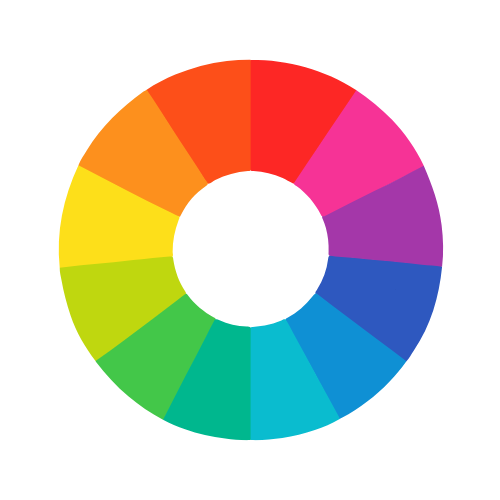
It shifts all colors in the image around the color wheel. A 180° rotation turns reds to cyans, blues to yellows, etc. It’s great for creative color effects.
Filters adjust pixel values mathematically but do not reduce resolution. However, extreme adjustments (like 200% contrast) may cause loss of detail in shadows or highlights.
ADVERTISEMENT