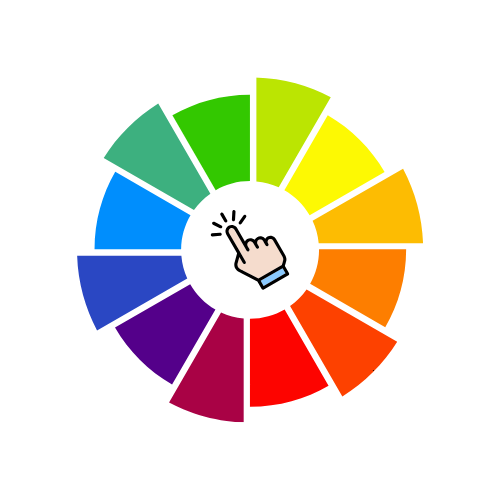
Click to upload an image or drag & drop
Supports JPG, PNG, GIF, BMP, WebP
No file selected
·
Click on the image to pick a color
HEX: #DC2626
RGB: 220, 38, 38

Upload an image and click anywhere to pick a color
Click to upload an image or drag & drop
Supports JPG, PNG, GIF, BMP, WebP
Click on the image to pick a color
The image is drawn on a canvas. When you click, the pixel's RGBA values are read and converted to hex. The color swatch and values update instantly. All processing happens locally in your browser.

Founder & CEO, Toolraxy
Faiq Ur Rahman is a web designer, digital product developer, and founder of Toolraxy, a growing platform of web-based calculators and utility tools. He specializes in building structured, user-friendly tools focused on health, finance, productivity, and everyday problem-solving.
User Ratings:
ADVERTISEMENT
The Image Color Picker is a simple yet powerful browser-based tool that lets you extract exact color values from any image. Whether you’re a designer matching brand colors, a developer sampling UI elements, or a hobbyist exploring color palettes, this tool provides instant HEX and RGB values from any pixel in your uploaded images.
Simply upload an image – JPG, PNG, GIF, BMP, or WebP – and click anywhere on the image to sample the color beneath your cursor. The tool displays a live color swatch along with the corresponding HEX code and RGB values. Copy the HEX code to your clipboard with a single click for immediate use in design software, CSS, or documentation.
Upload an image – Click the upload area or drag and drop any JPG, PNG, GIF, BMP, or WebP file.
View your image – The image appears on canvas, scaled to fit while maintaining aspect ratio.
Click to pick a color – Move your cursor over any part of the image and click to sample that pixel.
Check the color display – The color swatch updates instantly, showing the exact sampled color.
Read the values – HEX code (e.g., #FF5733) and RGB values (e.g., 255, 87, 51) are displayed.
Copy the HEX code – Click the “Copy HEX” button to save the color code to your clipboard.
Reset if needed – Use “Reset color” to return to the default red swatch.
Clear and start over – Click “Clear” to remove the current image and begin with a fresh canvas.
The Image Color Picker uses the HTML5 Canvas API to read pixel data from uploaded images with precision and accuracy.
1. Image Loading
User selects or drops an image file
FileReader API converts the file to a data URL
A new Image object loads the data URL asynchronously
2. Canvas Rendering
Image is drawn to an off-screen canvas at original dimensions
Display canvas scales the image to fit within 400×400 pixels while preserving aspect ratio
Scaling ensures usability while maintaining accurate color sampling
3. Click Event Handling
Canvas click coordinates are captured relative to the displayed image
Coordinates are translated from display pixels to image pixels using scale factors:
scaleX = canvas.width / displayRect.width
scaleY = canvas.height / displayRect.height
canvasX = (clickX - rect.left) * scaleX
canvasY = (clickY - rect.top) * scaleY
4. Pixel Sampling
getImageData(x, y, 1, 1) extracts a single pixel
Returns a Uint8ClampedArray containing [R, G, B, A] values (0–255 each)
5. Color Conversion
RGB values are read directly from the pixel data array
HEX conversion formula:
hex = '#' + ((1 << 24) + (r << 16) + (g << 8) + b).toString(16).slice(1).toUpperCase()
This creates a 6-digit hexadecimal representation of the RGB color
6. Display Update
Color swatch background is set to the sampled color
HEX and RGB text displays update with the new values
Copy button makes HEX available to system clipboard
Input:
User uploads a photograph with a blue sky area
User clicks on a pixel in the sky region
Pixel Data Extraction:
Canvas coordinates: (247, 182)
getImageData(247, 182, 1, 1) returns: [135, 206, 235, 255]
This corresponds to: R=135, G=206, B=235, Alpha=255 (fully opaque)
RGB Output:
Displayed as: 135, 206, 235
HEX Conversion:
Combine RGB values: (135 << 16) + (206 << 8) + 235 = 8,847,595
Add 1<<24 (16,777,216) to ensure 6-digit hex: 25,624,811
Convert to hexadecimal: 186EBB
Format with # prefix: #186EBB
Final Output:
HEX: #186EBB
RGB: 135, 206, 235
Color swatch shows sky blue
This matches the expected color value for a typical daytime sky, confirming accurate color sampling.
An image color picker is a digital tool that extracts color information from specific pixels within an image. Unlike traditional color pickers that sample from a static palette or gradient, image-based pickers allow users to capture real-world colors from photographs, screenshots, designs, or any visual media.
The core function involves three steps: displaying an image, detecting user click coordinates, and reading the pixel color data at that position. The result is typically presented as color values in various formats – most commonly HEX for web development and RGB for graphic design.
Design consistency – Maintaining brand colors across different media requires exact color matching. Picking colors from brand assets ensures accuracy in everything from websites to print materials.
Web development – CSS and styling depend on precise color codes. Developers often need to extract colors from design mockups, screenshots, or existing websites to implement consistent styling.
Digital art and illustration – Artists may want to sample colors from reference photos or inspiration images to build cohesive palettes for their work.
Accessibility compliance – Checking color contrast ratios requires knowing exact color values. Picking foreground and background colors from designs helps verify WCAG compliance.
Education and learning – Students learning color theory or digital design benefit from seeing how colors in real images translate to numeric values.
Content creation – Social media managers and marketers often need to match graphics to brand guidelines or extract colors from existing content.
Image resolution – Higher resolution images provide more pixel data and allow for more precise sampling. Low-resolution images may show compression artifacts that affect color accuracy.
Color space – Images may use different color spaces (sRGB, Adobe RGB, ProPhoto RGB). Most web tools operate in sRGB, which is the standard for web display.
Compression artifacts – JPEG compression can alter pixel colors, especially in areas with gradients or fine detail. PNG and BMP formats preserve exact pixel data.
Monitor calibration – The displayed colors depend on your screen’s calibration. While the tool extracts actual pixel values, how those colors appear on screen varies between devices.
Alpha channel handling – Transparent pixels (PNG) have an alpha value. This tool reads RGB values regardless of transparency, showing the color that would appear against a white background.
Anti-aliasing – Text and shape edges often contain blended pixels that don’t represent solid colors. Clicking these areas yields intermediate values, not the pure color.
Web design workflow – Extract colors from client logos, inspiration sites, or existing brand materials to build consistent color schemes.
UI/UX design – Sample colors from competitor apps, nature photography, or mood boards to develop harmonious interfaces.
Digital forensics – Color analysis can help identify edited images or verify authenticity in some contexts.
E-commerce – Extract dominant colors from product photos for color-based filtering and search functionality.
Accessibility testing – Verify that text and background colors meet contrast ratio requirements by sampling actual pixels.
Art restoration documentation – Catalog colors from historical artworks for preservation and reproduction.
Data visualization – Match chart colors to brand guidelines by sampling from approved assets.
Immediate access – No software installation required; works on any device with a modern browser.
Privacy preservation – Images never leave your device, making it suitable for sensitive or confidential materials.
Cross-platform compatibility – Works identically on Windows, Mac, Linux, ChromeOS, and mobile devices.
Zero cost – Free to use with no subscription, credits, or usage limits.
Educational value – Helps users understand the relationship between visual colors and numeric representations.
Workflow integration – Copy HEX codes directly to clipboard for immediate pasting into design tools or code.
No learning curve – Intuitive click-to-pick interaction requires no training or technical knowledge.
Single pixel sampling – The tool reads exactly one pixel. In areas of fine detail or noise, this may not represent the perceived color.
No averaging – Unlike eyedropper tools in professional software, there’s no option to sample an average of multiple pixels.
Magnification limitation – The displayed canvas may be scaled down, making precise clicking difficult on very large images.
No color palette extraction – This tool provides individual colors only, not dominant color analysis or palette generation.
No zoom functionality – Users cannot magnify specific areas before sampling, which would help with precision.
Format limitations – RAW camera files are not supported; images must be in common web formats first.
Color management – Basic implementation without ICC profile handling may affect color accuracy in some workflows.
Clicking anti-aliased edges – Sampling at the boundary between two colors yields a blended third color, not either pure color.
Ignoring compression artifacts – JPEG images may have slight color shifts. Use PNG or BMP for critical color matching.
Forgetting to reset – After clearing an image, the color display remains at the last picked value unless manually reset.
Misreading RGB values – RGB values range 0–255. Some formats use percentages or 0–1 scales; this tool uses the standard 0–255 range.
Assuming monitor accuracy – What you see depends on your display. For absolute color accuracy, use calibrated monitors and reference the numeric values.
Not verifying format – HEX codes must include the # prefix for CSS. The tool includes it automatically when copying.
Overlooking transparency – In PNG images with transparency, sampled colors are the actual RGB values, which may appear different when overlaid on various backgrounds.
Using low-quality sources – Highly compressed or low-resolution images may not provide accurate color information for critical applications.
Professional design tools like Adobe Photoshop, Sketch, and Figma include sophisticated color picking with features like average sampling, color libraries, and harmony suggestions. Browser-based tools fill the gap for quick, one-off tasks where launching heavy software is impractical.
The HTML5 Canvas API made browser-based pixel manipulation accessible, enabling tools that were previously only possible in native applications. This democratization of image processing means anyone with a browser can perform basic color analysis without specialized software.
Color formats serve different industries: HEX is standard for web (CSS), RGB for digital displays, CMYK for print, and HSL/HSV for color manipulation. This tool focuses on the two most commonly needed formats for digital work.
Accessibility standards (WCAG) rely on precise color values to calculate contrast ratios. Tools that provide exact RGB values help developers ensure their designs meet accessibility guidelines before deployment.
1. Complete privacy – All image processing happens locally. No uploads, no servers, no tracking – your images stay on your device.
2. Instant color extraction – Click any pixel and see HEX + RGB values immediately. No waiting, no processing delays.
3. One-click clipboard copy – Copy HEX codes directly to your system clipboard with a single button press.
4. Live color swatch – Visual confirmation of the sampled color updates in real-time as you click different areas.
5. Multiple format support – Works with JPG, PNG, GIF, BMP, and WebP images – all common web formats covered.
6. Built-in sample images – Test the tool immediately with included gradient, stripe, and circle patterns.
7. Mobile-friendly interface – Responsive design works on phones and tablets with touch-based color picking.
8. No registration required – Use immediately without creating accounts, providing emails, or accepting marketing.
The tool displays colors in HEX format (e.g., #FF5733) and RGB format (e.g., 255, 87, 51). Both are standard for digital design and web development.
Yes, the tool supports JPG, PNG, GIF, BMP, and WebP formats. RAW files from cameras must be converted to these formats first.
Monitor calibration, color profiles, and ambient lighting affect how colors appear. The numeric values (HEX/RGB) are accurate; display variation is normal.
Yes, but the RGB values are the actual pixel colors. In fully transparent areas, the color may be (0,0,0) or whatever was stored in the file, even if not visible.
This tool provides HEX and RGB only, which are standard for digital displays. CMYK conversion requires print-specific considerations.
Standard HEX colors use 6 characters (RRGGBB). Some tools use 3-character shorthand, but this tool provides the full 6-digit specification.
The tool reads the exact pixel value from the image file. Accuracy depends on the source image quality and format, not the tool itself.
ADVERTISEMENT
ADVERTISEMENT