Click to upload an image or drag & drop
Supports JPG, PNG, GIF, BMP, WebP
No file selected
·
Original

Inverted

Output format:

Convert image to negative (invert colors) – live preview, multiple formats
Click to upload an image or drag & drop
Supports JPG, PNG, GIF, BMP, WebP
Each pixel's red, green, and blue channels are replaced with 255 minus the original value. This creates a negative effect. Alpha channel remains unchanged. All processing happens locally in your browser – no upload.

Founder & CEO, Toolraxy
Faiq Ur Rahman is a web designer, digital product developer, and founder of Toolraxy, a growing platform of web-based calculators and utility tools. He specializes in building structured, user-friendly tools focused on health, finance, productivity, and everyday problem-solving.
User Ratings:
ADVERTISEMENT
ADVERTISEMENT
An image color inverter is a tool that converts a standard digital image into its negative counterpart. It works by reversing every color to its opposite on the color spectrum. In technical terms, for each pixel, the tool takes the Red, Green, and Blue values and subtracts them from 255. This simple mathematical transformation creates the classic “film negative” look that photographers and designers use for artistic effect, accessibility enhancements, or creative experimentation.
Before digital photography, seeing a negative was part of the film development process. Today, the negative effect has evolved into a powerful creative tool. Designers use it to create striking visuals, accessibility experts use it to test high-contrast requirements, and social media users love it for unique filters.
But opening professional software just to invert colors is overkill. Our online image color inverter delivers this effect instantly, with zero learning curve. Whether you’re a professional designer or just curious, you get professional-grade color inversion in seconds – right in your browser.
Creating stunning negative images takes just three simple steps:
Upload Your Image: Click the upload area or drag and drop any image file. We support JPG, PNG, GIF, BMP, and WebP.
See Instant Results: The inverted preview appears immediately. No sliders, no adjustments – just pure color reversal.
Download Your Creation: Choose your preferred output format (PNG for transparency support, JPEG for smaller files) and click “Download.” Your negative image is ready to use.
Every digital image is built from millions of pixels. Each pixel contains three color values: Red, Green, and Blue (RGB). These values range from 0 (no color) to 255 (maximum color).
Our color inverter uses a beautifully simple formula for every pixel:
New Color Value = 255 - Original Color Value
For example:
Pure black (0,0,0) becomes pure white (255,255,255)
Pure white (255,255,255) becomes pure black (0,0,0)
Bright red (255,0,0) becomes cyan (0,255,255)
Forest green (50,150,50) becomes (205,105,205) – a soft purple
This mathematical reversal creates the classic negative effect instantly. The entire process happens locally on your device – no servers, no uploads, no waiting.
Imagine you have a photograph of a blue sky with RGB values around (100, 150, 255) – a medium-bright blue.
Original Color: (100, 150, 255)
Inversion Formula:
Red: 255 – 100 = 155
Green: 255 – 150 = 105
Blue: 255 – 255 = 0
Resulting Color: (155, 105, 0)
The bright blue sky transforms into a warm golden-orange tone. This complementary color relationship is what makes inverted images so visually striking and artistically valuable.
One-Click Simplicity: No complex settings – upload and instantly see the negative effect.
100% Free & Unlimited: No watermarks, no signups, no hidden costs.
Complete Privacy: Your images never leave your device. All processing happens locally.
Instant Preview: See the inverted result immediately before downloading.
Multiple Formats: Download as PNG, JPEG, WebP, or BMP to suit your project needs.
Preserves Transparency: PNG outputs maintain alpha channels for graphics with transparency.
Graphic Designers: Create unique visual effects for posters, websites, and branding.
Photographers: Explore creative interpretations of your work.
Social Media Managers: Stand out with eye-catching inverted images.
Accessibility Specialists: Test high-contrast requirements for web content.
Educators & Students: Teach color theory and image processing concepts.
Curious Creatives: Anyone wanting to experiment with visual effects.
Ignoring Format Selection: If your original has transparency (like a logo), always download as PNG. JPEG does not support transparency and will fill backgrounds with white.
Overusing the Effect: While striking, inverted images can be disorienting in some contexts. Use purposefully for artistic impact, not as a default.
Forgetting About Midtones: Gray areas (around 127,127,127) will look very similar after inversion – this is normal behavior.
Global Effect: This tool inverts all colors uniformly. You cannot selectively invert only certain parts of an image without first cropping it.
JPEG Artifacts: If you upload a highly compressed JPEG, inversion may make compression artifacts more visible.
No Adjustment Controls: Unlike brightness or contrast tools, inversion is an all-or-nothing effect – there are no “partial” settings.
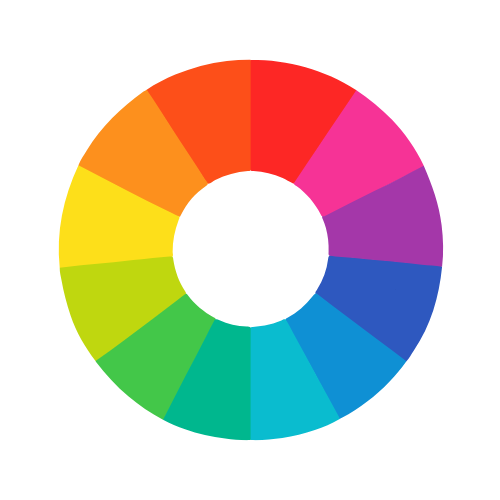
Complementary colors are pairs that sit opposite each other on the color wheel. Red and cyan, green and magenta, blue and yellow are classic examples. When placed together, they create maximum contrast and visual vibrancy. Color inversion automatically transforms every color into its exact complementary opposite – which is why inverted images have such a powerful visual impact.
Digital displays create all colors by mixing red, green, and blue light. Each channel has 256 possible values (0–255). Pure red is (255,0,0); white is all three at maximum (255,255,255); black is all at zero (0,0,0). Understanding RGB helps explain why inversion works: every color value is simply “flipped” to its opposite position in the 0–255 range.
Traditional film photography produced negatives where light areas appeared dark and colors were reversed. This was a chemical process required for printing. Today’s digital inversion recreates that classic look, but with a twist: while film negatives had an orange/brown cast due to the materials used, digital inversion creates mathematically perfect complementary colors for a cleaner, more vibrant effect.
Some users with visual impairments benefit from high-contrast displays. Inverting screen colors can improve readability for people with light sensitivity or certain types of color blindness. However, inversion affects everyone viewing the image, so it’s best used for specific accessibility contexts rather than general web design.
Inverting image colors creates a “negative” effect by replacing each color with its opposite. Black becomes white, white becomes black, red becomes cyan, and so on. This creates a striking, surreal version of your original image.
Yes, it is completely free. There are no hidden fees, no watermarks, and no usage limits. You can invert as many images as you want, whenever you want.
Simply upload your photo to this tool. The inverted version appears instantly. Then download your image in your preferred format. It’s that easy – no software installation or learning curve required.
Yes. The tool preserves alpha channels (transparency) when you download as PNG. For other formats like JPEG, transparency is not supported and will be filled with white.
That’s the intended effect! Color inversion creates complementary colors. Red becomes cyan, green becomes magenta, and blue becomes yellow. These color relationships are fundamental to color theory and create the distinctive negative look.
Sometimes, yes. High-contrast color schemes can help users with certain visual impairments. However, it’s best to test with your specific audience as inverted colors can also be disorienting for some users.
ADVERTISEMENT
ADVERTISEMENT